
AI presentation tools help you create clear slides, visuals, and presentation stories in minutes instead of hours. Understanding how AI models support different content-generation tasks can also help students explore the broader AI ecosystem. They can turn prompts, data, or long text into ready-to-edit decks.
This guide covers the 8 best AI presentation tools for 2026: Gamma, Tome, Beautiful.ai, Canva Magic Design, Microsoft Copilot, Google Gemini, Julius AI, and SlidesAI.
Each tool works differently. Some create full decks from one prompt, while others turn data or documents into slides. Below, compare their features, pricing, and best uses to find the right AI presentation tools for your next deck.
How I Chose the Best AI Presentation Tools
Good AI tools for presentation design should save you real time, not just move the work around. I compared each AI presentation maker on five factors:
- Generation quality: how well the tool turns a prompt or document into a clear, organized deck
- Design automation: how much manual formatting you still need to do
- Export and integration: whether you get PowerPoint, PDF, or web links, and how well it fits Google Slides or Microsoft 365
- Data security: whether the tool has compliance certifications that schools and businesses can rely on
- Pricing and free tier: how much real value you get before you pay
We checked every price and feature against official pricing pages and product documentation, so the numbers below reflect current 2026 plans.
Best AI Presentation Tools at a Glance
Here is a quick side-by-side look at the best AI presentation tools, their free tiers, and starting prices.
| Tool | Best For | Free Tier | Standout Feature |
| Gamma | Quick AI presentations and web decks | 400 lifetime credits | Prompt-to-presentation with Gamma Agent |
| Tome | Sales pitches and account research | Limited free plan | AI account research and narrative flow |
| Beautiful.ai | Polished corporate slides | 14-day trial, card required | Smart adaptive slide layouts |
| Canva Magic Design | Creative and visual decks | Free plan, 200 lifetime AI uses | Brand Kit plus 100M+ visual assets |
| Microsoft Copilot | PowerPoint users in Microsoft 365 | Free Copilot Chat only | Word-to-PowerPoint conversion |
| Google Gemini | Google Slides users | Free with standard Slides | Google Workspace integration |
| Julius AI | Data-heavy presentations | 15 messages/month | Live charts and code execution |
| SlidesAI | Turning text into slides fast | 3 free presentations | Text-to-slide add-on for Slides and PowerPoint |
8 Best AI Presentation Tools
1. Gamma
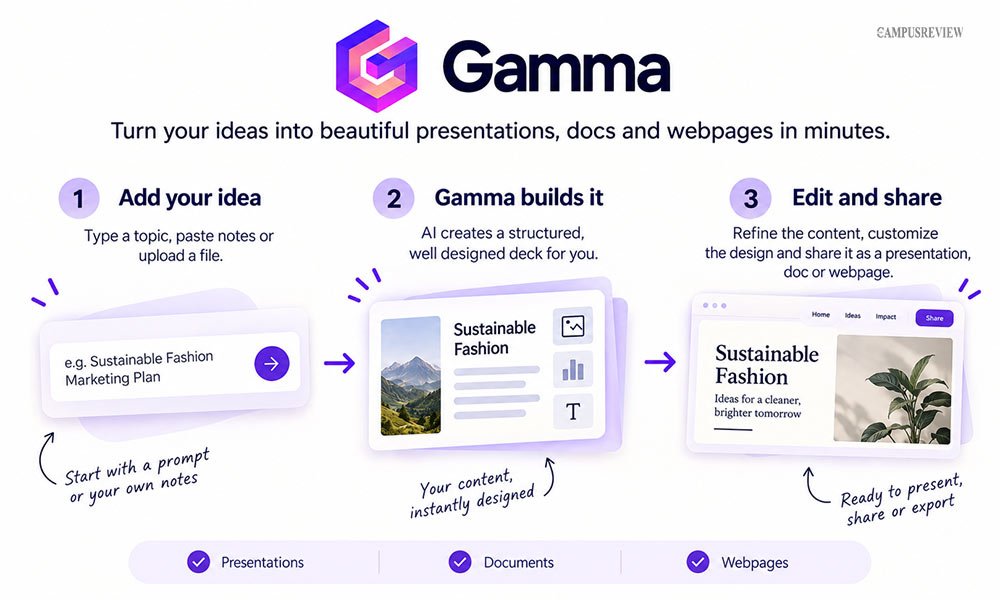
Gamma turns a text prompt, pasted notes, or an uploaded document into a full presentation in under a minute. It is also useful as a study tool for turning class notes and research into clear slides. It builds slides on a flexible card layout instead of fixed ratios, so text and images resize on their own. Gamma Agent, its built-in assistant, can pull live web data, add source citations, and rewrite whole sections when you ask it to.
How to use Gamma: Open Gamma, choose Generate, and write a full prompt, not just a topic.
Try: “Create an 8-slide presentation on renewable energy for college students. Cover solar, wind, and hydro power, one key stat per slide,
Tone: informative and simple.” Gamma builds a full card-based outline with matching images in under a minute.
Open Gamma Agent inside the finished deck and give it follow-up commands, like “add a bar chart comparing solar and wind costs on slide 3” or “make the tone more casual across all slides.”
Gamma edits the existing cards instead of starting over, so you keep refining one deck until it is ready to send.
Free plan: $0. Includes 400 lifetime credits and up to 10 cards per prompt, but exports carry a Gamma watermark.
Paid plans: Plus starts at $9/mo, Pro at $18/mo, and Ultra at $90/mo, adding more credits, brand kits, and custom domains as you move up.
Best for: Students and professionals who want a fast, ready deck from a single prompt.
2. Tome
Tome builds interactive, web-based presentations for sales teams. It links to CRM data and account research to create pitches built around one specific buyer. Instead of a static slide file, Tome outputs a scrollable web page you share as a link, complete with viewer tracking.
How to use Tome AI:
Start a new project and describe the deal in plain terms.
Try: “Build a pitch deck for Acme Corp, a 200-person SaaS company evaluating our onboarding platform. Focus on time-to-value and integration ease.” Tome researches the account and drafts a narrative sequence with relevant data pulled in automatically.
Drag tiles on the canvas to resize text, images, or live embeds, like a product demo video. Publish the finished deck as a web link, then check the built-in analytics to see which slides your buyer spent the most time on before your next call.
Free plan: $0. Basic AI generation with limited monthly credits, but every shared deck carries Tome branding.
Paid plans: Pro starts at $16/user/mo, unlocking unlimited creation, custom branding, and PDF export. Enterprise pricing is custom.
Best for: Sales reps, account executives, and founders who need personalized pitch decks fast.
3. Beautiful.ai

Beautiful.ai fixes your layout as you edit. Add a bullet, a chart, or an image, and the slide resizes and realigns everything on its own. This removes most of the manual pixel-pushing that eats up time in regular slide software.
How to use Beautiful.ai:
Start a new deck and pick a smart template that fits your content, like “Timeline” or “Financial Comparison.”
Type your data directly, such as three project milestones and their dates. The tool will automatically arrange and align them, even if you add a fourth milestone later.
You can also skip templates and enter a full prompt, such as “Create a 6-slide deck on our Q3 marketing results for the leadership team, with a metrics comparison slide and a next-steps slide.”
Beautiful.ai fills in a first draft using its smart templates, which you then adjust slide by slide without breaking the layout.
Free plan: No permanent free plan. A 14-day trial is available, but it needs a credit card to start.
Paid plans: Pro starts at $12/mo for individuals. Team plans start at $40/user/mo with shared brand hubs and admin controls. Exports come out as fully editable PowerPoint presentations.
Best for: Professionals who need clean, business presentations without a design background.
4. Canva Magic Design
Canva Magic Design builds full slide decks from a prompt or an uploaded file, drawing on Canva’s library of more than 100 million photos, vectors, and templates. It works alongside Canva’s other AI tools, including Magic Write for text and Dream Lab for AI-generated images.
How to use Canva Magic Design:
Open Magic Design inside Canva and either upload a document, like a PDF report, or type a full prompt.
Try: “Create a 10-slide presentation on healthy eating habits for high school students, bright and friendly style.”
Canva drafts a full deck using its stock photo and template library, matched to the tone in your prompt. Open the draft in Canva’s normal editor to swap fonts, resize images, or apply your saved Brand Kit colors.
Use Magic Write inside any text box to rewrite a slide’s copy on the spot, or Magic Switch afterward to turn the same deck into a short video or a social post.
Free plan: $0. Includes standard tools plus a lifetime allowance of about 200 AI uses.
Paid plans: Canva Pro starts at $13/mo with full Magic Studio access. Team plans start around $10/user/mo.
Best for: Students, teachers, and creators who want visual, template-style AI presentation design.
5. Microsoft Copilot for PowerPoint
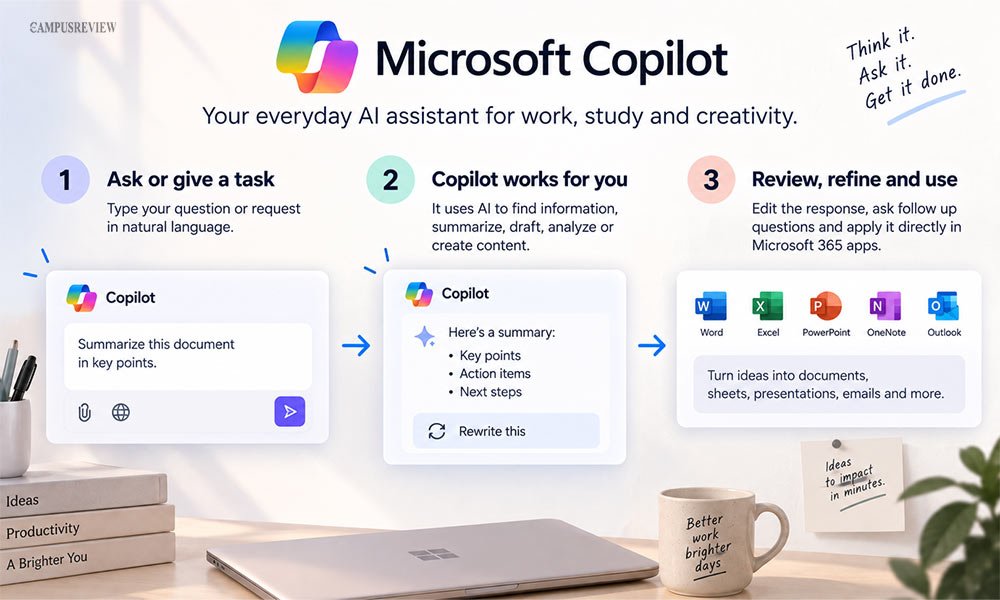
Copilot works directly inside PowerPoint. Through Microsoft Graph, it reads your Word documents, emails, and Teams chats, then builds a deck grounded in your own files instead of generic content. It also writes speaker notes and summarizes long decks for you.
How to use Copilot:
Open a blank PowerPoint file or an existing Word report, then open the Copilot sidebar. With a Word file attached,
Try: “Create a presentation from this document, 10 slides, for the leadership team.” Copilot reads the source file, pulls out headings and key data points, and maps them onto slide templates using the built-in Designer engine.
Give it a follow-up prompt, like “add speaker notes to every slide” or “summarize this into 5 slides for a shorter meeting,” and Copilot rewrites the whole deck without you touching individual slides. This makes it one of the more useful AI tools for PowerPoint work in an office setting.
Free plan: Free Copilot Chat only. Full deck generation needs a paid add-on.
Paid plans: The business add-on runs $18-21/user/mo on top of a qualifying Microsoft 365 plan, landing around $32-43/user/mo all in.
Best for: Teams already working inside Microsoft 365 who want decks built straight from existing documents.
6. Google Gemini for Presentations
Gemini works as a side panel inside Google Slides. It reads your Google Docs and Sheets, then drafts slide copy and pulls out key data points. It also generates images with Google’s Imagen model, right inside the slide editor, without needing outside stock libraries.
How to use Gemini:
Open Google Slides, click the Gemini icon in the side panel, and link the Google Doc or Sheet you want to pull from.
Try: “Summarize this quarterly report into 8 slides, with one chart per section.” Gemini reads the linked file and drafts slide copy and layout suggestions right inside the panel. Use the “Help me visualize” prompt to generate an image with Imagen instead of searching stock photo sites.
Because everything runs inside Google Workspace, teammates can co-edit the same deck in real time while Gemini keeps drafting new slides.
Free plan: Free with a standard Google Slides account, though AI features need an add-on.
Paid plans: Requires a Google Workspace plan starting at $6/user/mo, plus a Gemini add-on around $19.99/mo for individuals.
Best for: Teams and educators already working inside Google Workspace.
7. Julius AI

Julius AI is built for data, not just text. It runs real Python and R code to analyze spreadsheets, PDFs, or live databases, then turns the results into charts and slides. It supports more than 40 chart types, which makes it one of the more advanced AI tools for creating slides from raw numbers.
How to use Julius AI:
Upload a spreadsheet, like a CSV of sales figures, into a new Julius project.
Try: “Analyze this data and build a 5-slide presentation on quarterly revenue by region, one chart per slide, plus a summary slide.”
Julius writes and runs the Python code itself, cleans the data, and generates charts from more than 40 visualization types.
Ask a follow-up question, like “which region grew the fastest,” and Julius recalculates and updates the relevant chart on its own. On higher-tier plans, connect a live database so the same presentation refreshes automatically as new data comes in.
Free plan: $0. Includes a 15-message monthly allowance, enough to test simple datasets.
Paid plans: Plus starts at $16/mo. Higher tiers add live database connectors and priority support for bigger teams.
Best for: Analysts and researchers who need charts built straight from raw data.
8. SlidesAI
SlidesAI is a simple add-on for Google Slides and PowerPoint. It takes long text, like a blog post or a research paper, and turns it into a structured slide deck with headings and bullets. This makes it one of the fastest ways to convert text to presentation format without retyping anything.
How to use SlidesAI:
Install SlidesAI from the Google Slides or PowerPoint add-on store, then open a new file. Paste in a block of text, like a blog post or a set of class notes, for example, a 1,500-word article on climate change. Set the slide count to 10 and pick the “Educational” style from the sidebar.
SlidesAI reads the text, pulls out the main points, and builds a deck with headings and bullets automatically, no manual copy-paste needed.
Regenerate any single slide you don’t like from the sidebar, or edit the text directly inside your normal Slides or PowerPoint editor.
Free plan: $0. Allows up to 3 total presentations, enough for a quick test run.
Paid plans: Paid plans start around $8.33/mo, supporting up to 10 presentations a month with expanded limits.
Best for: Students, teachers, and researchers turning existing text or notes into slides fast.
How to Make a Presentation With AI
Follow these steps with any AI presentation generator to get a deck you can actually present, not just a rough draft.
Choose your AI tool based on your needs. Use Gamma or Canva for quick decks, Copilot or Gemini if you already work inside Microsoft or Google, and Julius AI for data-heavy slides.
Write a clear prompt. State your topic, audience, slide count, tone, and key points.
Add source material. Upload a Word doc, PDF, or CSV so the AI works from real content, not just guesses.
- Generate the slides. Let the tool build the first draft. This usually takes under a minute.
- Check facts and visuals. AI-generated slides can get stats or names wrong. Check every number against your source before you present.
- Edit the presentation. Use the AI editor to rewrite specific slides, adjust tone, or add charts.
- Export and present. Download as PowerPoint or PDF, or share a web link if your tool supports it.
How to Write a Good Prompt for an AI Presentation
The quality of your slides depends on the quality of your prompt. A vague prompt gives you generic bullet points. A structured prompt gives you a deck that actually fits your audience.
Use this formula: Topic + Audience + Number of Slides + Tone + Key Points + Visual Style
Example prompt:
“Create a 10-slide presentation about climate change for high school students. Use simple language, include causes, effects, and climate solutions, with one data visualization per section.”
This works because it tells the AI exactly what to cover and who it is for. A vague prompt like “make a presentation about climate change” gives generic slides, so you have to rewrite most of them yourself.
| Prompt Part | What It Does |
| Topic | Sets the subject and boundaries of the deck |
| Audience | Sets the vocabulary, depth, and tone level |
| Slide Count | Controls pacing and how much detail fits per slide |
| Tone | Sets the style, formal or casual |
| Key Points | Lists what must appear on the slides |
| Visual Style | Guides colors, layout, and chart choices |
End Note
Choosing a suitable tool from the best AI presentation tools depends on your workflow and what you need to create. Use Gamma or Canva Magic Design for speed, Copilot or Gemini for Microsoft 365 and Google Workspace, and Julius AI for data-heavy presentations.
Whichever AI presentation software you choose, check its facts before presenting. AI can speed up design, but you are responsible for the accuracy of your content.
Frequently Asked Questions
1. Which AI presentation tool works with PowerPoint?
Microsoft Copilot works directly with PowerPoint, while tools such as Gamma and Julius AI can create presentations that can be exported for further editing.
2. What is the best AI presentation tool for students?
Gamma and Canva are useful for student presentations, while Julius AI can help with data-heavy academic decks.
3. Which AI tool is best for making a professional presentation?
Beautiful.ai is designed for professional presentation design, while Gamma and Microsoft Copilot can also help create polished business decks.
3. What is the easiest AI tool to make a presentation?
Gamma is designed to create a complete presentation from a single prompt, making it useful when you want to build a deck quickly.
4. Which AI presentation tool is best for data?
Julius AI is suited to data-heavy presentations because it can work with uploaded data and create charts for presentation decks.